Cover the object and its shadow. Use the eraser to refine the selection.
Step 3
Download the result
Review the edit and save your PNG without a watermark.
Frequently asked questions.
How do I remove an object from a photo?
Upload a photo and brush over the entire object, including any shadow you want removed. Select Remove object and compare the PNG result with the original to check the filled area.
Can I remove people from a photo?
Yes; include the person's outline and shadow in the mask. If they overlap someone you want to keep, use a smaller brush at the boundary and review that area in the result.
Does the magic eraser work on text?
Brush over unwanted text in a photo you have the right to edit. Include the full lettering in the mask and check that nearby details were preserved.
Can I adjust the mask?
Use a smaller brush near edges, or switch to the eraser to remove part of the selection. Undo reverses the last stroke; Clear removes the entire mask.
What fills the space where the object was?
The editor uses textures and colors around the mask to reconstruct the selected area. Leave the prompt blank to match the surroundings, or describe what belongs there.
Can I remove objects for free?
You can try 3 Standard edits without signing up. You can mark several areas of the same photo in a single edit.

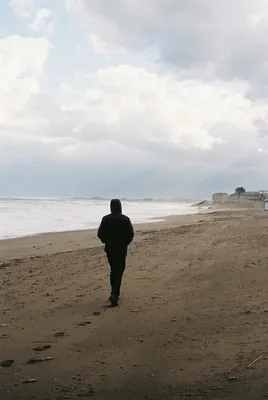


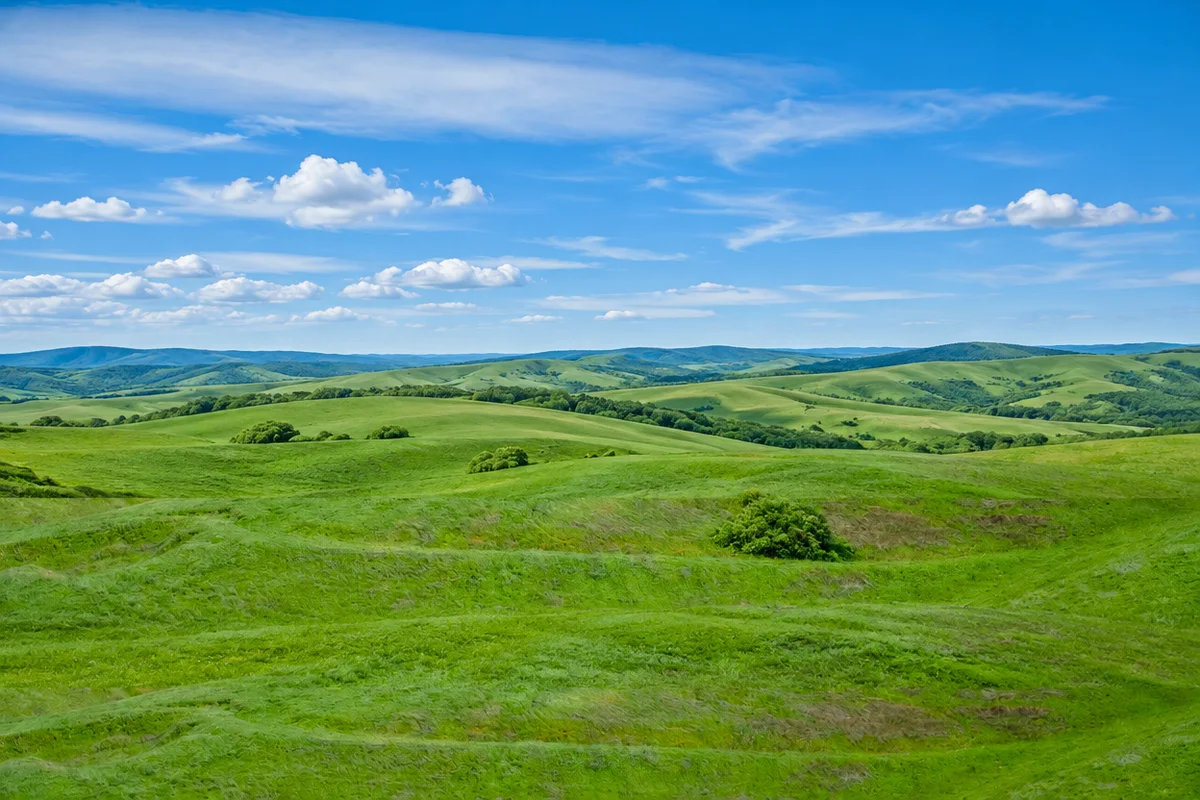
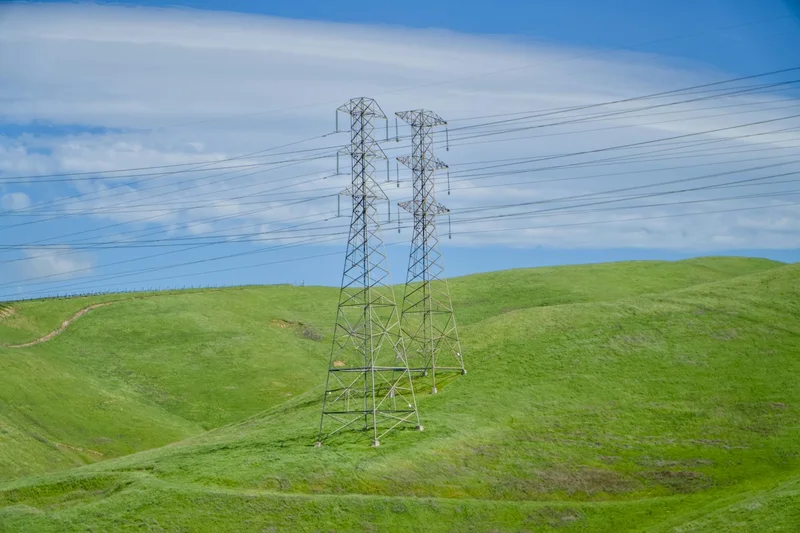


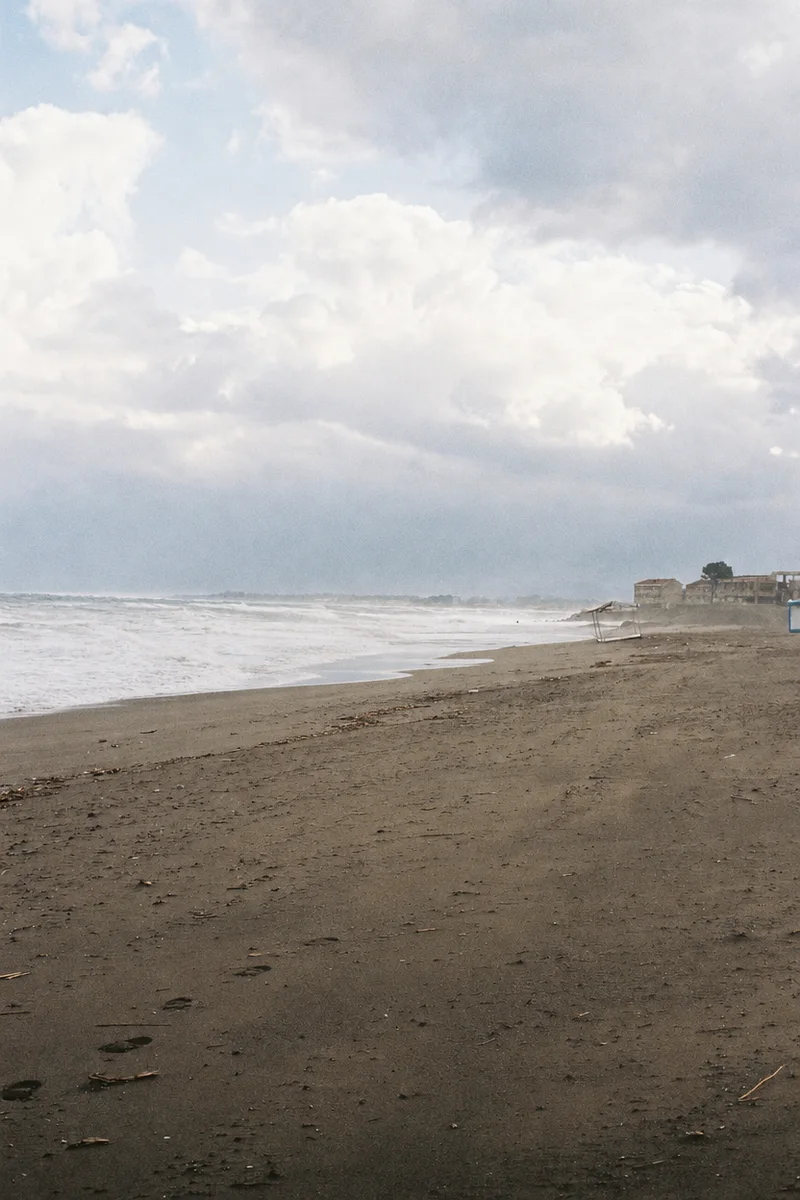
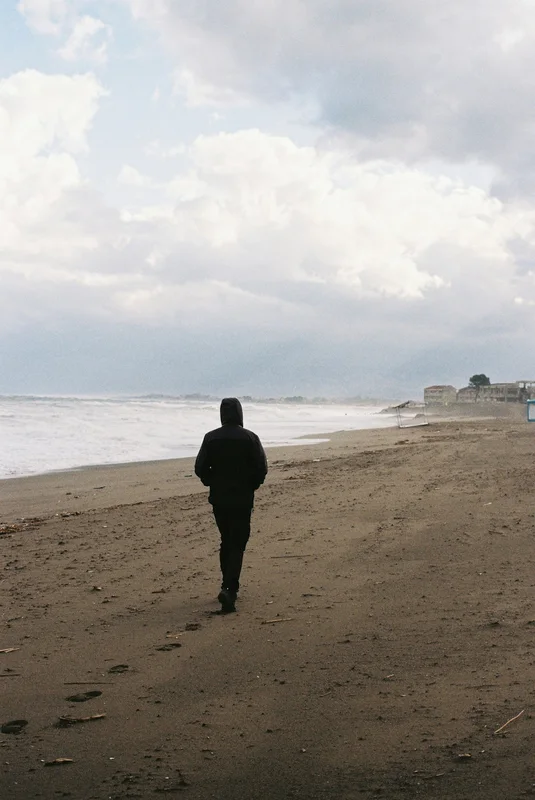 BeforeAfter